
After installing and activating WENS Musico Pro, you can import any available starter demo with just a few clicks. The demo importer automatically sets up pages, templates, patterns, menus, and design settings, allowing your website to match the selected demo instantly.
Step 1: Open the Demo Importer #
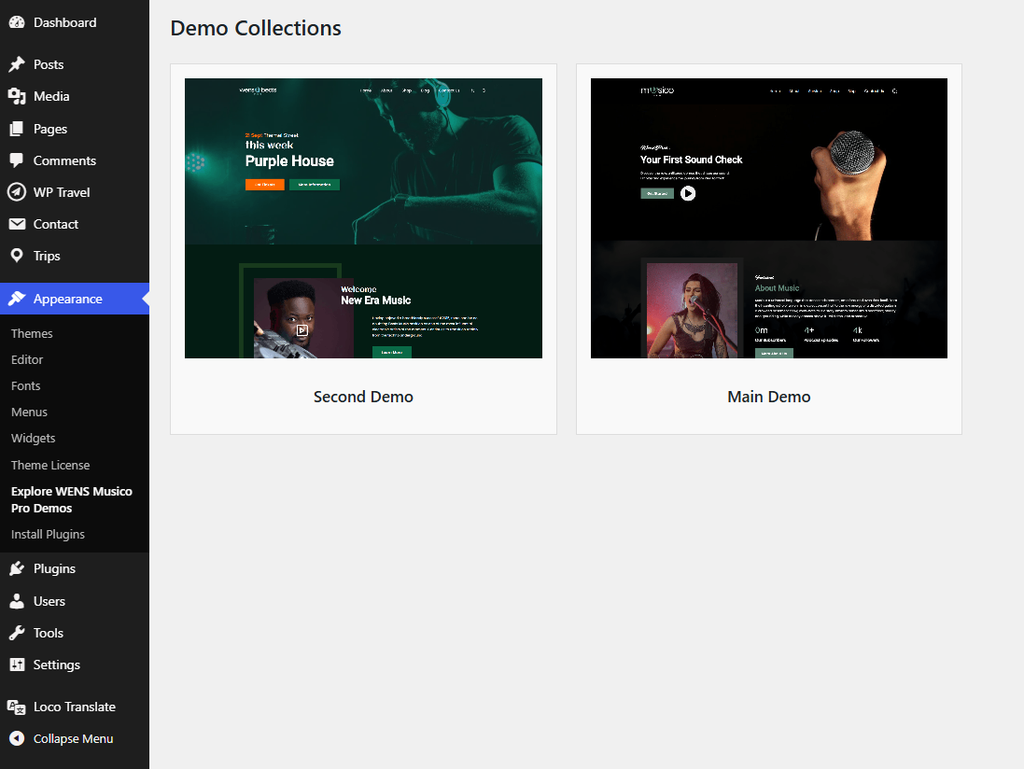
From your WordPress Dashboard, navigate to:
Appearance → Explore Demo
You will see all demo collections available for WENS Musico Pro.
Step 2: Browse Available Demos #
Browse through the available demos and click Demo to preview the design before importing it.
WENS Press Pro currently includes several demo variations, such as:
- Main Demo
- Second Demo
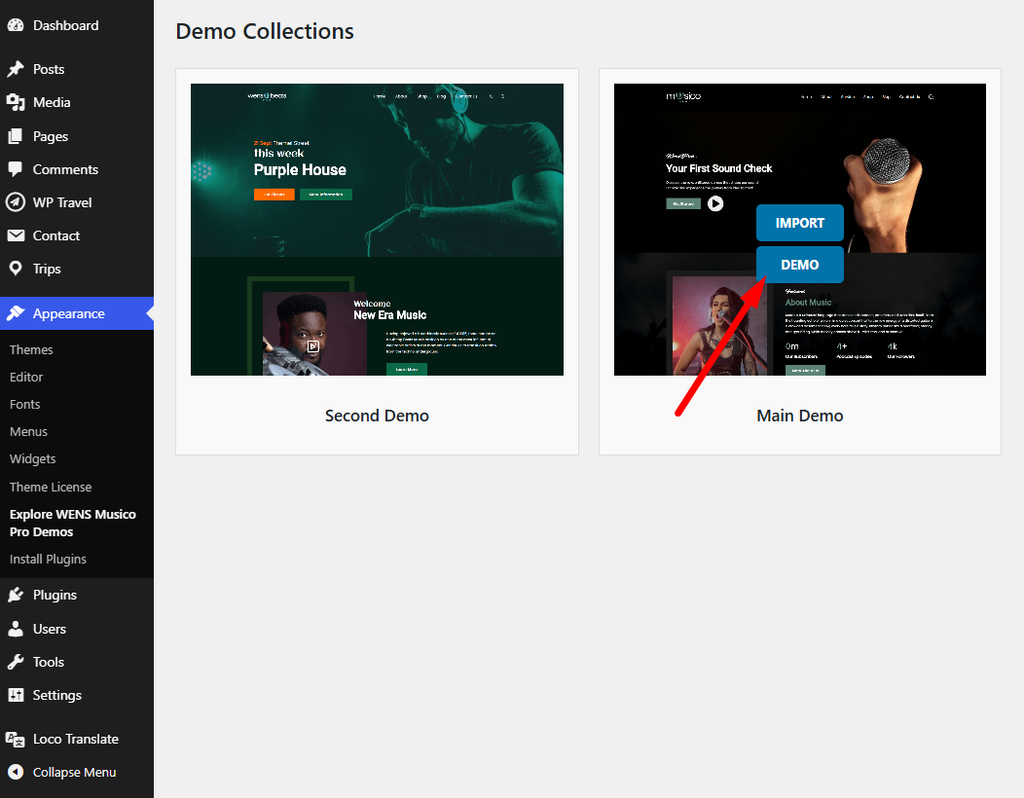
Each layout is designed for different content styles
Step 3: Import a Demo #
- Select the demo you want to import.
- Click the Import button.
- Wait for the import process to complete.
- Do not close or refresh your browser while the import is in progress.
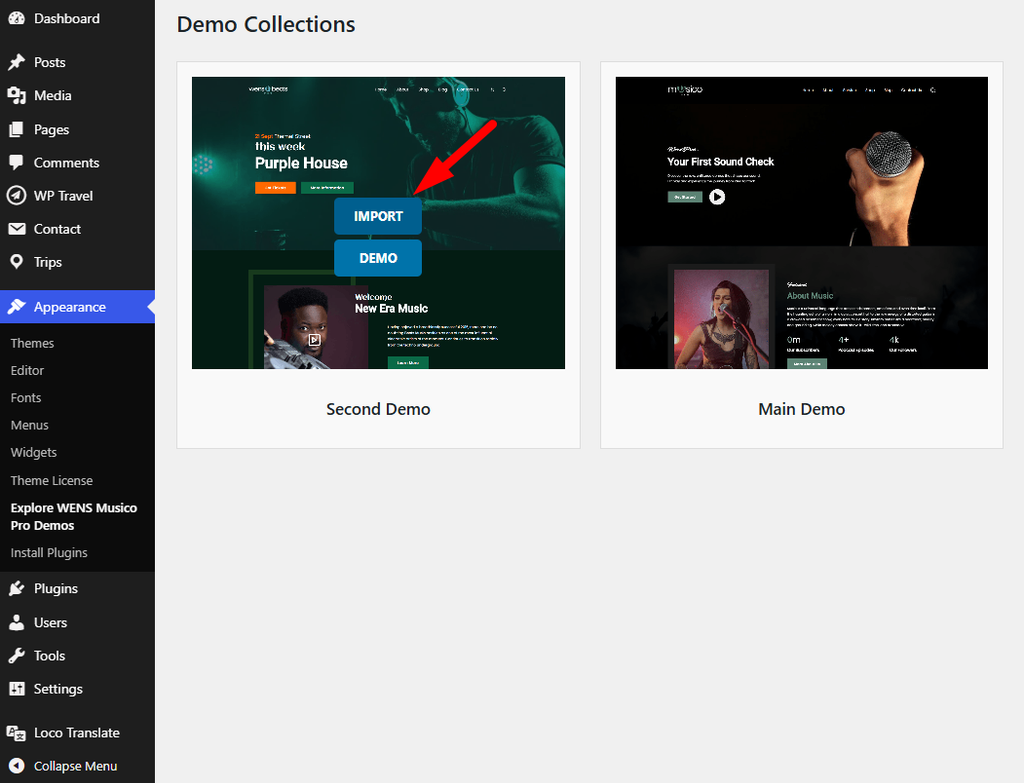
Once complete, the importer automatically creates the required pages, templates, menus, patterns, and theme settings associated with the selected demo.
Step 4: Customize Your Website #
After importing the demo, you can personalize your website by editing page content, replacing demo images, updating menus and navigation, customizing colors, typography, and layouts, and adding your branding and content.
Important Notes #
- Depending on your hosting environment, the demo import may take several minutes.
- Some demos require recommended plugins.
- For best results, import demos on a fresh WordPress installation.
- Do not close or refresh your browser until the import finishes.


