
WENS Press Pro includes multiple professionally designed demo layouts that can be imported with a single click. These demos help you quickly create a news, magazine, blog, or editorial website without building everything from scratch.
Step 1: Open the Demo Importer #
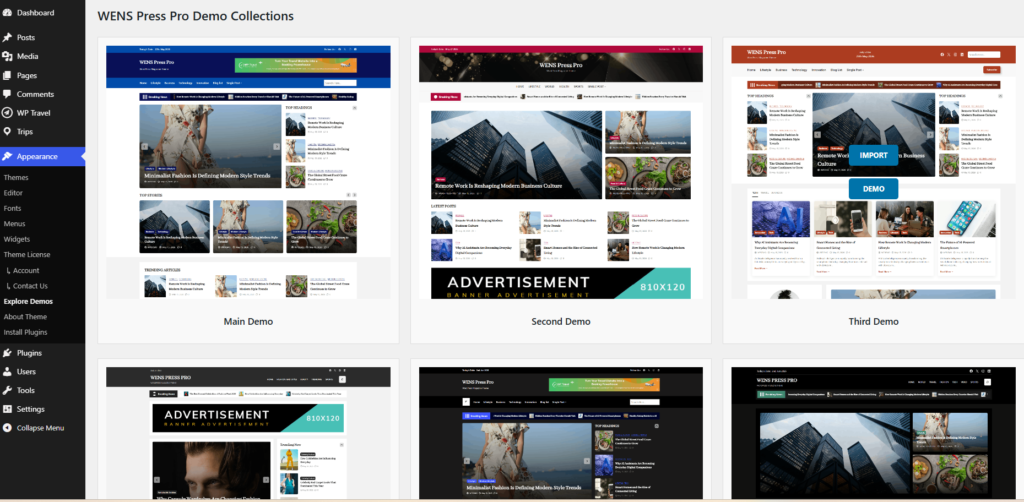
From your WordPress Dashboard, navigate to:
Appearance → Explore Demos
This is where you can access all available demo templates included with the WENS Press Pro theme.
Step 2: Preview a Demo #
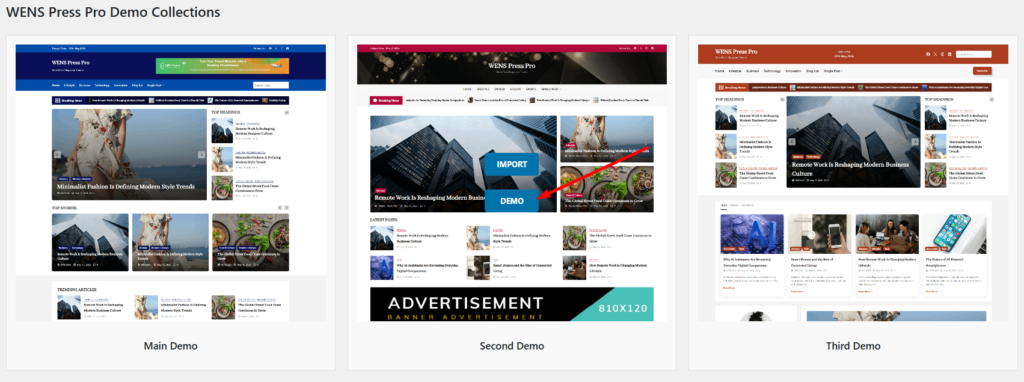
Browse through the available demos and click Demo to preview the design before importing it.
WENS Press Pro currently includes several demo variations, such as:
- Main Demo
- Second Demo
- Third Demo
- Additional Light and Dark Layout Variations
Each layout is designed for different content styles such as news portals, blogs, and magazine websites.
Step 3: Import the Demo #
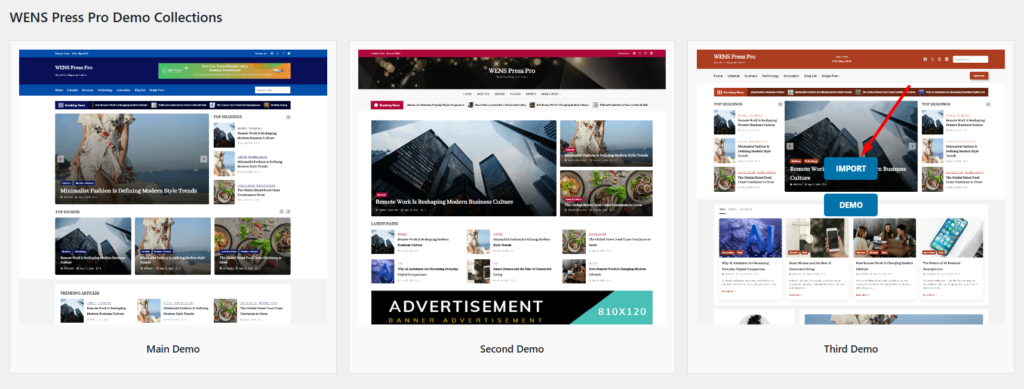
- Hover over your preferred demo.
- Click the Import button.
- Wait for the import process to complete.
- Do not refresh or close your browser window during the import.
The importer will automatically set up the demo content, pages, templates, patterns, menus, and theme settings associated with the selected demo.
Step 4: Customize Your Website #
After using WENS Press Import, you can personalize your site:
- Replace demo content with your own articles
- Update logo and site title
- Adjust colors and typography
- Modify navigation menus
- Edit homepage sections


